
Adobe Lightroom APK Download: Free vs. Premium and Best Editing Tips
July 25, 2026
442 MB
11.4.5
Android 8+
100,000,000+
Description
Adobe Lightroom APK is available free on Android, with over 100 million installs worldwide. This guide covers the latest version, what’s actually free, how to install it, and 15 practical tips to get better photos out of it today.
Adobe built Lightroom as a full editing suite for photographers at every level. Whether you shoot on a phone or import RAW files from a DSLR, the APK handles both without switching apps. It’s not just a filter tool. It’s a complete workflow from capture to export, all inside one application on your Android device.
What Is Adobe Lightroom APK?
Adobe Lightroom APK is the Android installation file for Adobe’s mobile photo and video editor. The package name is com.adobe.lrmobile, and it’s developed directly by Adobe Inc. You can download it from Google Play or sideload it as an APK file. Both options install the same official app.
The latest version as of July 2026 is 11.4.5, updated on July 15, 2026. The file size is 442 MB, so you’ll want a stable connection before you download.
Quick Facts Table
| Detail | Info |
|---|---|
| App Name | Adobe Lightroom Photo & Video Editor |
| Package ID | com.adobe.lrmobile |
| Latest Version | 11.4.5 (July 2026) |
| File Size | 442 MB |
| Developer | Adobe Inc. |
| Installs | 100,000,000+ |
| Platform | Android, iOS, Windows, macOS |
| Free Tier | Yes (partial features) |
| Premium Price | From $9.99/month |
Lightroom APK Free vs Premium: What You Actually Get
This is the part most sites skip. The official Lightroom APK is free to download, but around 30 to 40 percent of its features need a paid subscription.
What’s free:
- Exposure, contrast, highlights, shadows, whites, blacks
- Temperature, tint, vibrance, saturation
- Tone curve
- Crop, rotate, perspective straightening
- RAW file import and editing (DNG, CR2, CR3, NEF, ARW, RAF, ORF)
- A selection of free presets
- Basic local adjustments
What’s locked behind Premium:
- AI Masking (subject, sky, background, object)
- Healing brush and content-aware removal
- Cloud sync across devices
- Color grading wheels (HSL, Color Mix)
- Advanced geometry tools
- Batch editing with sync
- Premium presets library (250+ styles)
- HD and high-resolution export
- Generative Remove (AI object removal)
The free tier is genuinely useful for most casual photographers. If you shoot RAW or do serious portrait work, the premium tools matter a lot more.
Pricing (2026):
- Lightroom plan: $9.99/month (1TB cloud, mobile + desktop)
- Photography Plan: $19.99/month (Lightroom + Photoshop + 20GB cloud)
- Students and teachers: $24.99/month for the full Creative Cloud suite (first year discount)
- Free trial: 7 days with full premium access and 1TB cloud storage
Key Features of Adobe Lightroom APK
AI-Powered Camera
Lightroom’s built-in camera uses AI to adjust brightness, colour, and focus in real time. It supports High Dynamic Range (HDR) mode, which handles both bright and dark areas in a single shot. You don’t need a separate camera app.
RAW File Support
This is the standout free feature. Lightroom reads almost every major RAW format including DNG, CR2, CR3, NEF, ARW, RAF, and ORF. You can import directly from your phone or via a USB-C card reader on supported Android devices.
Color Gradient Tool
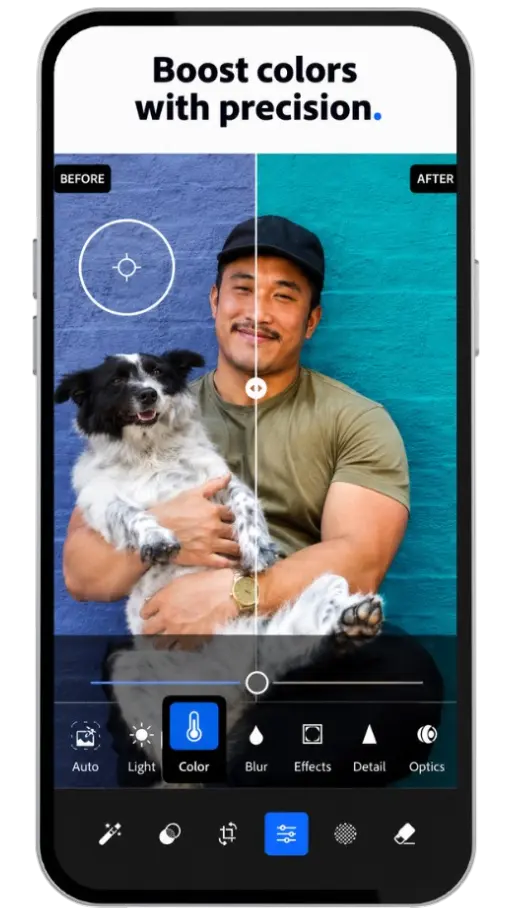
The premium color gradient feature lets you apply tints to shadows, midtones, and highlights separately. It comes with 1,600 preset gradient plates to work from. The Target Adjustment tool lets you tap and drag directly on the photo to adjust hue, saturation, and luminance with one finger.
Presets and Filters
Presets are one-tap settings that apply a full look to a photo instantly. Lightroom includes cinematic, moody, bright and airy, vintage, and black and white styles. You can also save your own presets and apply them across multiple photos.
Batch Editing
Copy your edits from one photo and paste them across an entire album. This is a big time saver for consistent social media feeds or event galleries. The free version gives you basic copy-paste; the premium version syncs edits across devices automatically.
Healing and Masking (Premium)
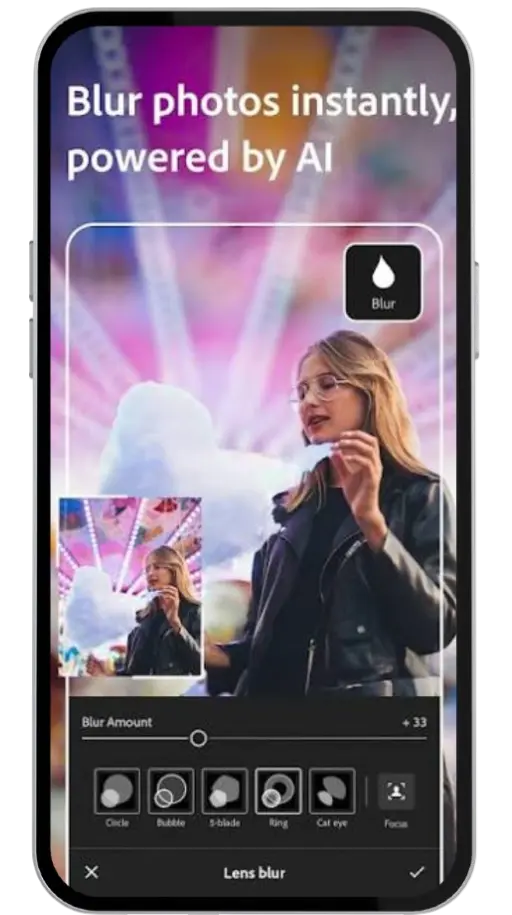
The healing brush removes objects, blemishes, and distractions without leaving visible patches. AI Masking lets you select a subject, sky, or background with one tap and edit just that area. These two tools alone justify the subscription for portrait and landscape photographers.
Export Quality
The free version exports at standard quality. Premium unlocks HD and high-resolution exports, giving you full control over file format and resolution before you share or print.
Adobe Lightroom APK Download: Latest Version 2026
The safest way to get Lightroom APK is through Google Play. Open the Play Store, search “Lightroom Photo & Video Editor,” and install it directly from Adobe. No extra steps needed.
To sideload the APK manually:
- Go to a trusted APK source (APKNUT.NET)
- Download version 11.4.5 (442 MB)
- Open your Android Settings
- Go to Security and enable “Install from Unknown Sources” for your browser or file manager
- Open the downloaded APK file from your notifications or file manager
- Tap Install
- Sign in with a free Adobe ID to activate the app
You need an Adobe ID to use the app. Sign-up is free and only takes a minute. Without it, you can’t access even the free features.
Lightroom APK for PC (Windows and Mac)
Adobe Lightroom Classic is the better choice for PC users. It’s the desktop-first version with full catalog management, deep batch editing, and tethered shooting support.
If you still want to run the Android APK on Windows:
- Install BlueStacks or NoxPlayer (Android emulators)
- Your system needs Windows 10 minimum and at least 4GB RAM
- Download the Lightroom APK through the emulator’s built-in Play Store
- Sign in with your Adobe ID
Performance on an emulator is slower than the native desktop app. For serious editing, install Lightroom Classic directly from Adobe’s website instead.
Lightroom desktop minimum requirements (Windows):
- OS: Windows 10 (64-bit), version 1909 or later
- Processor: Intel or AMD, 2 GHz or faster, 64-bit
- RAM: 8 GB minimum, 16 GB recommended
- Storage: 2 GB for installation, SSD strongly recommended
- Display: 1920 x 1080 or greater
- GPU: DirectX 12 support, 2 GB VRAM minimum
Lightroom APK System Requirements (Android)
Your Android phone needs to meet these specs to run Lightroom APK:
Minimum requirements:
- Processor: Quad-core, 1.5 GHz or faster, 64-bit (ARMv8)
- Android version: Android 8.0 (Oreo) or later
- RAM: 3 GB recommended
- Storage: 500 MB free space minimum (more for local presets and exports)
- Internet: Required for sign-in and cloud features
Important: Adobe dropped support for ARMv7 and x86 processors after version 8.3.1. If your phone uses one of those older chips, the latest versions won’t install. You can still get version 8.3.1 from the Play Store on those devices.
What Is Lightroom Mod APK? (Honest Take)
A mod APK is a modified version of the official app built by third-party developers, not Adobe. Lightroom Mod APK claims to unlock all premium features permanently without a subscription.
What mod APKs claim to offer:
- All premium presets unlocked
- Healing brush and AI masking free
- No watermarks on exports
- No ads
- No login required (some versions)
What they don’t tell you:
First, mod APKs violate Adobe’s Terms of Service. Adobe can detect modified app signatures and ban your account. If you use the same Adobe ID for Creative Cloud, Photoshop, or Acrobat, that entire account is at risk.
Second, security is a real concern. Modified APK files can carry malware, spyware, or adware hidden inside the package. You’re granting storage, camera, and microphone permissions to a file built by an unknown person.
Third, updates break them. Every time Adobe releases a new version, the mod breaks. You end up stuck on an old version while the official app gains new features.
The mod APK searches spiked 300% this week (“lightroom mod apk no login”) according to current trends data. That tells you demand is high, but it doesn’t mean the risk goes away.
Safer alternatives if you can’t afford the subscription:
- Use Lightroom’s free tier (it’s genuinely capable for basic edits)
- Try Snapseed (completely free, no subscription)
- Use VSCO’s free plan for preset-based editing
- Wait for Adobe’s seasonal discounts on Photography Plan
Lightroom APK Old Version Download
Users search for older Lightroom APK versions for a few reasons: their phone can’t handle the latest version, a recent update broke something, or their device has an ARMv7 processor.
Where to find old versions:
- APKCombo (apkcombo.com): has version history going back several years
- Uptodown (uptodown.com): reliable version archive with clean APK files
Risks of running old versions:
- Missing security patches
- No support for newer Android features
- Older presets and editing engine
- Cloud sync may stop working with outdated app versions
If you need the absolute last version for ARMv7 devices, look for version 8.3.1 specifically. That’s the last release Adobe officially supported for those processors.
Lightroom APK vs Lightroom Classic: Which One Do You Need?
Both are Adobe products, but they serve different workflows.
Lightroom APK (Mobile):
- Best for shooting and editing on your phone
- Syncs edits to the cloud
- Good for social media content creators
- Free tier covers most casual needs
- Works on Android, iOS
Lightroom Classic (Desktop):
- Best for managing large photo libraries
- Supports tethered shooting from a DSLR/mirrorless camera
- Full catalog system with star ratings, flags, and collections
- Faster batch processing on desktop hardware
- No mobile app equivalent for these deep catalog tools
If you shoot on your phone and edit for Instagram or YouTube thumbnails, the APK is all you need. If you shoot professionally with a camera and manage thousands of files, use Classic.
15 Best Photo Editing Tips for Adobe Lightroom APK
These tips work on the free and premium versions unless noted.
1. Fix Exposure Before Anything Else
Always start with exposure. Move the Exposure slider until the overall brightness looks right, then use Highlights and Shadows to recover detail. Don’t touch Vibrance or Saturation until the light is correct.
2. Use the Histogram as Your Guide
The histogram in the top right shows whether your image is clipped (overexposed or underexposed). Keep tones away from both edges. A photo with detail in every tonal range always edits better than one with blown highlights.
3. Shoot in RAW, Edit in RAW
If your phone supports it, enable RAW capture in Lightroom’s built-in camera. RAW files hold far more data than JPEGs, so you can recover shadows and highlights without quality loss. This is the single biggest quality upgrade available for free.
4. Start with the Tone Curve
The Tone Curve is free and more precise than the basic sliders. An S-curve (lift the highlights, pull down the shadows slightly) adds contrast and depth that the Contrast slider can’t match. Learn this one tool and your photos will look immediately more professional.
5. Don’t Overuse Clarity
The Clarity slider adds mid-tone contrast and texture. It looks dramatic at high values, but above +30 it makes skin look rough and landscapes look artificial. Keep it between +10 and +25 for most edits.
6. Use Vibrance Instead of Saturation
Saturation boosts every colour equally, which often makes skin tones look orange and skies look fake. Vibrance only boosts colours that are already muted, and it protects skin tones. Use Vibrance to add colour pop without the unnatural look.
7. White Balance First for Portrait Photos
Skin tones live or die on white balance. Set Temperature to match your light source: cooler (lower number) for daylight, warmer (higher number) for indoor light. A wrong white balance makes the best exposure correction pointless.
8. Use the Target Adjustment Tool (Premium)
In the HSL panel, tap the Target Adjustment tool and drag directly on a colour in your photo. Dragging up increases saturation for that colour, dragging down reduces it. It’s far more accurate than guessing which slider to touch.
9. Mask Your Sky and Subject Separately (Premium)
Use AI Masking to select the sky with one tap. Then adjust the sky (cooler temperature, less highlights) without touching the subject below. This single technique separates snapshots from edited photos. The AI selection is accurate enough to use on most outdoor shots.
10. Save Every Good Edit as a Preset
When you get an edit you like, save it as a Custom Preset. Name it something you’ll remember, like “Warm Portrait” or “Moody Street.” Apply it to future photos with one tap, then fine-tune for each specific image. This builds your own editing style over time.
11. Use the Healing Brush for Clean Backgrounds (Premium)
The Healing Brush removes distractions (wires, people, blemishes) without leaving patches. Tap the area you want to remove, and Lightroom fills it from surrounding pixels. For best results, use it on areas with simple, consistent textures.
12. Batch Edit for Consistency
If you’re editing a set of photos from the same session, edit the best one first. Then tap the three-dot menu, choose Copy Settings, and paste to the rest of the album. Adjust exposure individually on each photo afterward. This keeps your feed looking consistent without editing every photo from scratch.
13. Export at the Right Resolution for the Platform
- Instagram: 1080px wide, JPEG, 80-90% quality is enough
- Print: Export at full resolution, TIFF or highest-quality JPEG
- YouTube thumbnail: 1280 x 720px minimum
The free tier exports at standard quality. Premium gives you full control over output resolution and format. For social media, standard quality is usually fine.
14. Use Presets as a Starting Point, Not a Final Result
Most beginners apply a preset and stop there. Instead, apply a preset at 60-70% strength using the Amount slider, then adjust Exposure and Temperature on top of it. Presets are a starting direction, not a finished edit. Your own adjustments on top are what make the photo look like yours.
15. Check Your Edit on a Plain White Screen
Before you export, open a plain white image in your gallery and look at it next to your edit. This resets your eyes from getting used to the edit’s colour cast. If the white looks yellow, green, or pink, your white balance needs adjusting. This is a simple trick that catches colour problems before you post.
Lightroom APK Alternatives in 2026
If Lightroom APK doesn’t fit your needs or budget, these apps are worth considering:
Snapseed (Free) Google’s editing app has no subscription. It includes healing, perspective correction, selective adjustments, and filters. It’s the best free alternative for users who want most of Lightroom’s core tools without paying anything.
VSCO (Free + Paid) VSCO’s preset system is similar to Lightroom’s. The free plan includes a good selection of film-style presets. Its paid plan adds more presets and video tools. Better for aesthetic-first editing than technical work.
Picsart (Free + Paid) Good for creative edits, stickers, and layer-based work. Not the right choice for photographers who want precise exposure and color control, but solid for social media content creators.
Remini (Free) is trending heavily in the same search data as Lightroom APK. CapCut is primarily a video editor, not a photo editor. If you create short videos for TikTok or Instagram Reels, it’s worth having alongside Lightroom.
Conclusion: Is Adobe Lightroom APK Worth It?
Adobe Lightroom APK is the strongest mobile photo editor available for Android in 2026. No other free app gives you RAW support, a proper tone curve, and AI-powered tools in one place.
The free tier is honest. It covers exposure, color, RAW editing, and basic presets without asking for your credit card. For most casual photographers and social media users, that’s already enough to get professional-looking results.
The premium tier is worth paying for if you shoot portraits, landscapes, or anything that needs AI Masking, Healing, or cloud sync across devices. At $9.99 a month, it’s cheaper than most editing courses and you get the actual tools, not tutorials about them.
Skip the mod APK. The risks (malware, account bans, no updates) outweigh the savings. Your Adobe ID connects to everything, and losing it costs more than a subscription ever would.
Here’s the short version of what to do:
- Download the official app from Google Play (free, takes two minutes)
- Sign up for a free Adobe ID
- Start with the 15 editing tips in this guide
- Use the free 7-day trial to test premium tools before you commit
- If premium features fit your workflow, subscribe. If not, the free tier handles the rest.
Good photos don’t need expensive software. They need the right technique applied consistently. Lightroom APK gives you the tools. The 15 tips in this guide give you the direction. The rest is practice.
Frequently Asked Questions
Yes, it’s free to download. Around 60 to 70 percent of the basic features work without payment. Premium tools like AI Masking, Healing, cloud sync, and HD export need a subscription.
No. Mod APKs are not made by Adobe and carry real risks including malware, account bans, and data theft. Adobe can detect modified app signatures and suspend your Adobe ID. Use the free tier or a trial instead.
No. You need a free Adobe ID to activate the app. Sign-up is free and takes under two minutes. Without it, the app won’t function.
The mobile APK runs on PC through Android emulators like BlueStacks. For real desktop editing, install Lightroom Classic directly from Adobe.
For RAW editing and professional-grade color control, Lightroom wins. For quick, free edits with no account needed, Snapseed is easier and faster.
Last updated: July 2026. Version data sourced from Google Play and Adobe’s official support page.

I’m a professional content writer at APKNut, creating clear, accurate, and SEO focused content about Android apps, games, and digital tools. My focus is on useful guides and easy to understand information for readers.
Download links
How to install APK?
1. Tap on Download now.
2. Touch install.
3. Follow the steps on the screen.
Related apps




Most rated apps
 Snapseed APK: Turn Free Photo Editing Into Real Income in 20264.1.2 205 MB
- Bilibili App – Download, Features, How to Earn Money & Full Review (2026)v9.7.0 195 MB
- MovieBox APK Download (2026) | Free Movie Streaming App2.11.30 40 MB
- 588PKR Game APK Download v2.2.11 for Android Pakistan 2026v2.2.11 7.76 MB
- AQ99 Game APK Download Free for Android in Pakistan 2026v2.1.32 15.3 MB


